
KODA Engine Keyboard Shortcuts
A reference for working inside the KODA app - keyboard shortcuts, mouse modifiers, and interaction conventions across the editor, for both macOS and Windows.
This document is not finalized for publish and is still being worked on.

Conventions
Shortcuts in this manual are written for both platforms at once. Where a modifier differs between macOS and Windows, the key cap shows the Mac form on top and the Windows form beneath it - for example ⌘ CmdCtrl means Command on macOS, Control on Windows.
| Key | macOS | Windows |
|---|---|---|
| ⌘ CmdCtrl | Command (⌘) - the primary command modifier. | Control (Ctrl). |
| ⌥ OptAlt | Option (⌥). | Alt. |
| Shift | Same on both platforms. | |
| Ctrl+Click | Treated as a right-click - opens context menus. | Use a real Right-click instead. |
Most keyboard commands are remappable in the app's Shortcut settings - the bindings shown here are the factory defaults. Undo, Redo, Save, and Save As are fixed and cannot be reassigned. Mouse-modifier gestures (drag, scroll, click combinations) are fixed.
Global Shortcuts
These commands work regardless of which panel currently has keyboard focus.
| Shortcut | Action |
|---|---|
| ⌘ CmdCtrl+Z | Undo |
| ⌘ CmdCtrl+Shift+Z | Redo |
| ⌘ CmdCtrl+S | Save |
| ⌘ CmdCtrl+Shift+S | Save As |
| ⌘ CmdCtrl+C | Copy |
| ⌘ CmdCtrl+X | Cut |
| ⌘ CmdCtrl+V | Paste |
| ⌘ CmdCtrl+A | Select all |
- Return applies the typed value and closes the editor, or confirms the dialog.
- Esc cancels and closes the editor or dialog without applying.
- Right-click opens the context menu for the item under the cursor.
Undo, Redo, Save, and Save As always apply to the focused instrument.
Sliders, Knobs & Value Fields
Every knob, slider, and editable value display in KODA shares the same interactions. These behaviors also apply to widgets in the instrument UIs you build in Figma - the engine handles them automatically.
| Shortcut | Action | Notes |
|---|---|---|
| ⌘ CmdCtrl+Click | Reset to default value. | Works on knobs, sliders, and some value fields. Pan sliders recenter. |
| ⌘ CmdCtrl+Drag | Coarse adjustment (larger steps). | Works on some knobs in the app. Start by dragging, then add cmd modifier. |
| Right-click or ⌥ OptAlt+Click | Open the modulation popup. | Use this on knobs that have modulation applied to them. |
Lane Edit View
The Lane Edit View is where audio clips are arranged, trimmed, and faded. It supports a rich set of keyboard shortcuts, mouse modifiers, and scroll-wheel gestures.
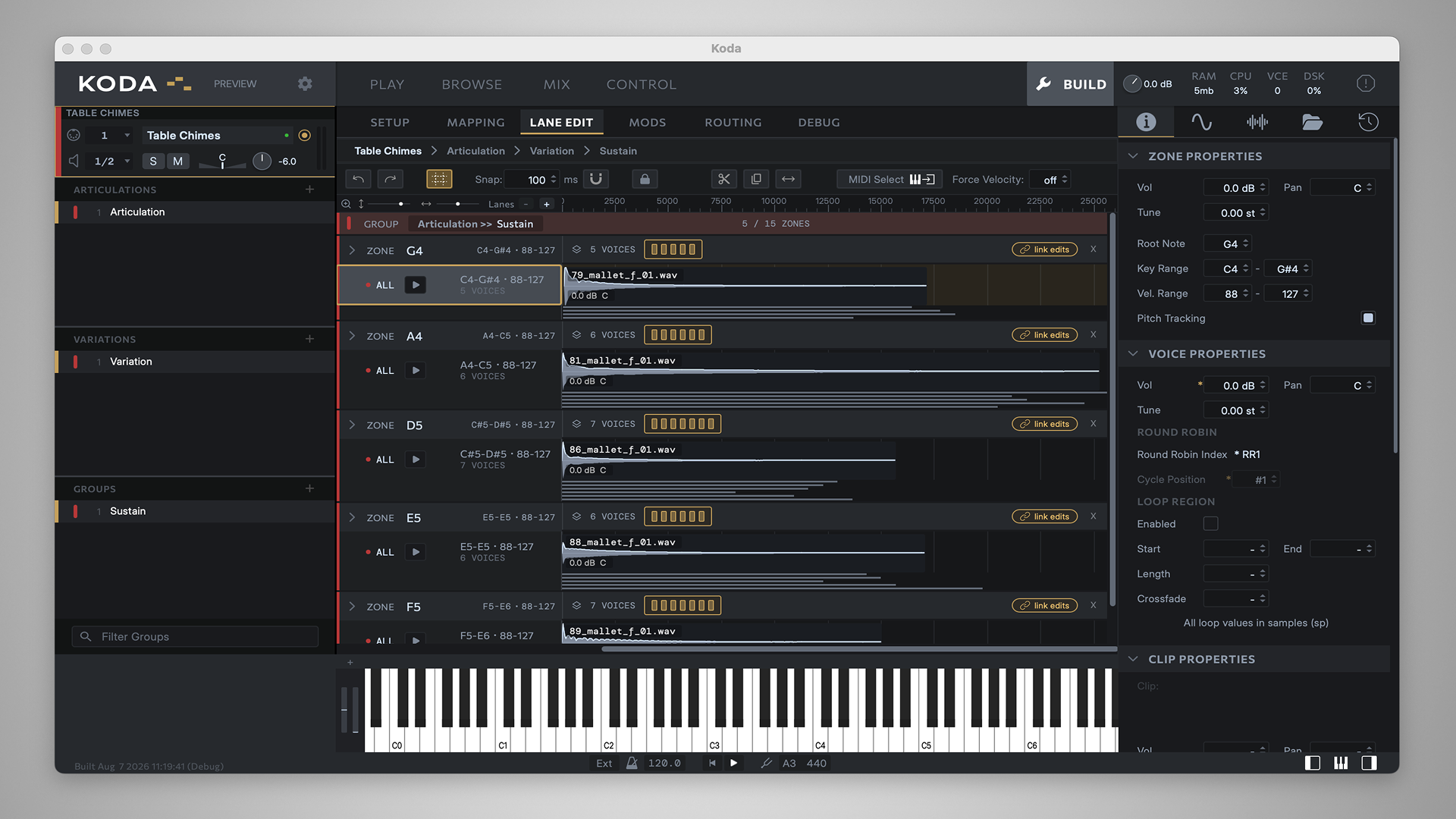
Keyboard
| Shortcut | Action |
|---|---|
| Space | Play / stop the focused clip. |
| ← / → | Nudge selected clips left or right. |
| Delete / Backspace | Delete the selected clips. |
| ⌘ CmdCtrl+A | Select all clips on every displayed lane. Click on an empty background area to deselect. |
Selection & Mouse
| Shortcut | Action |
|---|---|
| Shift+Click a clip | Add clip to current selection. |
| Drag on background | Begin a lasso-select. |
| Shift+Drag on background | Lasso-select - add the enclosed clips to the selection. |
| Shift+Drag a clip | Move the clip into a neighboring lane while locking its horizontal position. |
Edit Mode Modifiers
Holding these modifiers while hovering over a clip changes the cursor's edit mode.
| Modifier | Mode | Effect |
|---|---|---|
| ⌘ CmdCtrl (top half) | Split | Split the clip at the cursor position. |
| ⌥ OptAlt (bottom half) | Duplicate | Duplicate the clip on drag. |
| ⌘ CmdCtrl+⌥ OptAlt (bottom half) | Slip Edit | Move the file offset within the clip without moving the clip itself. |
Scroll Wheel
| Gesture | Action |
|---|---|
| Scroll | Vertical scroll up and down lanes. |
| Shift+Scroll | Horizontal scroll along the timeline. |
| ⌘ CmdCtrl+Scroll | Horizontal timeline zoom, anchored at the cursor. |
| ⌘ CmdCtrl+Shift+Scroll | Waveform zoom. |
Mapping View
The Mapping View is a 2D editor for sample zones, plotted across pitch and velocity. Selection, zoom, and zone editing share modifier conventions with the Lane Edit View.
Keyboard
| Shortcut | Action |
|---|---|
| ⌘ CmdCtrl+C / ⌘ CmdCtrl+X / ⌘ CmdCtrl+V | Copy / cut / paste the selected zones. |
| ⌘ CmdCtrl+A | Select all zones. |
| ⌘ CmdCtrl+G | Merge selected zones. |
| ⌘ CmdCtrl+F | Close gaps between adjacent zones. (Side-by-side needs matching velocity ranges, stacked needs matching key ranges.) Edge margins aren't filled. |
| Delete / Backspace | Delete the selected zones. |
| L | Lock / unlock the selected zones. |
| Z | Toggle the Zone Editor panel. |
| E | Toggle Link Edges. |
Arrow Keys
With zones selected, the arrow keys navigate or resize depending on the modifier held.
| Shortcut | Action |
|---|---|
| ← → ↑ ↓ | Navigate the selection. |
| Shift+Arrow | Add to currently selected zones by selecting zones above/below or to the left/right. |
| ⌘ CmdCtrl+Arrow | Expand the zone edge on the arrow's side. |
| ⌥ OptAlt+Arrow | Contract that edge. |
| Shift+⌘ CmdCtrl+Arrow | Expand that edge in larger steps (×5). |
| Shift+⌥ OptAlt+Arrow | Contract that edge in larger steps (×5). |
Selection & Mouse
| Shortcut | Action |
|---|---|
| ⌘ CmdCtrl+Click a zone | Add to current selection. |
| Shift+Drag on zone | Start a lasso (rectangle) selection including this zone. |
| ⌘ CmdCtrl+Shift+Drag on a zone edge | Select a zone instead of edge. Use this if a zone is small and you are only being offered edge selection, but need to move the zone. |
| Double-click a zone | Open zone in the lane editor. |
| ⌘ CmdCtrl+Drop | When dropping files or pool samples - replace the target zone instead of adding. |
| Drag a minimap box edge | Zoom the main map view along that axis. |
Scroll Wheel
| Gesture | Action |
|---|---|
| Scroll | Vertical pan (velocity axis). |
| Shift+Scroll | Horizontal pan (note axis). |
| ⌘ CmdCtrl+Scroll | Horizontal zoom (note axis). |
| ⌘ CmdCtrl+Shift+Scroll | Vertical zoom (velocity axis). |
The Mapping keyboard commands fire globally - they operate on the mapping selection regardless of which view currently has focus. The exception is when a text editor or the Debug Console is focused, which intercepts the keys first.
Structure View
The Structure View lists the instrument's articulations, variations, and groups. Its lists support multi-selection, drag-reordering, and a rich context menu.
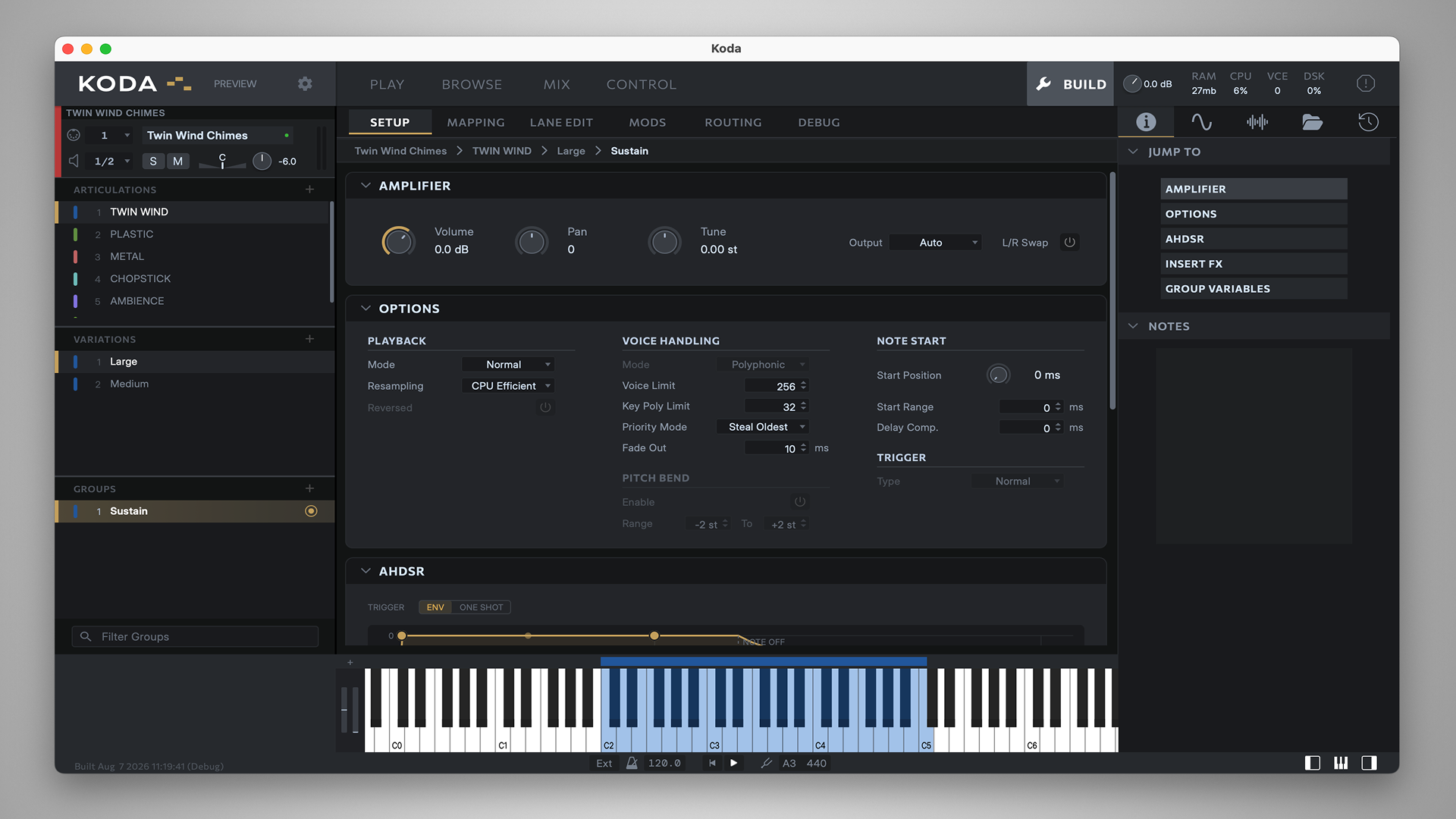
| Shortcut | Action |
|---|---|
| ⌘ CmdCtrl+Click | Add / toggle the item in the selection. |
| Shift+Click | Range-select from the current item. |
| Double-click a name | Rename the item in place. |
| Tab / Shift+Tab | While renaming - commit and edit the next / previous row. |
Items are reordered by dragging them up or down their list.
Zone Editor
The Zone Editor is the single-zone timeline view, where one zone's clip arrangement is edited in detail.
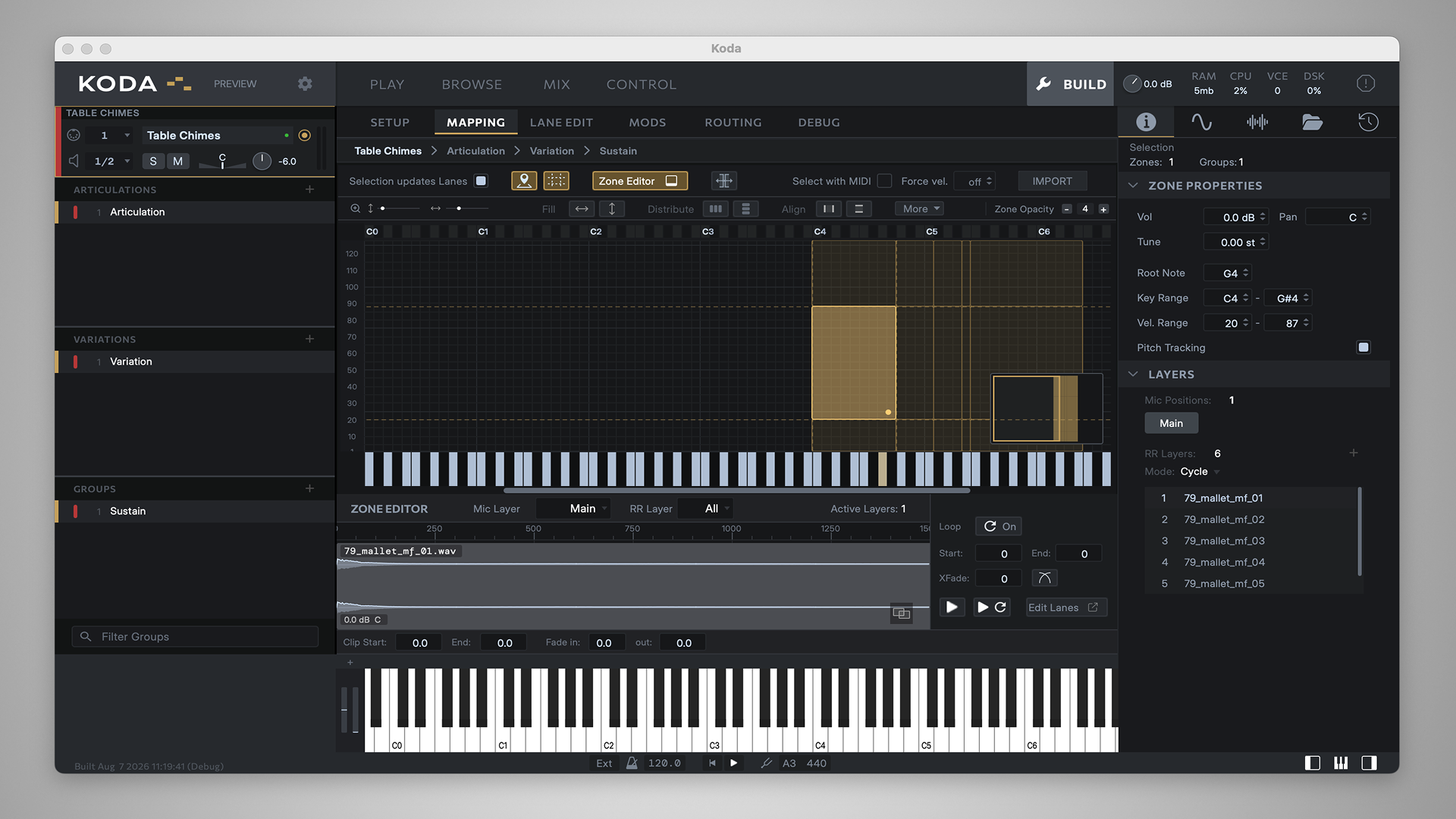
| Shortcut | Action |
|---|---|
| ← / → | Nudge selected clips along the timeline. |
| Scroll over the timeline ruler | Horizontal zoom anchored at the cursor (no modifier needed). |
| ⌘ CmdCtrl+Scroll over the clips | Horizontal zoom anchored at the cursor. |
| Shift+Scroll over the clips | Horizontal scroll along the timeline. |
| ⌘ CmdCtrl+Click the timeline | Move the playhead to the start. |
Keyboard Edit
The Keyboard Edit view (build mode) is where key ranges are drawn and assigned across the on-screen keyboard.
| Shortcut | Action |
|---|---|
| Double-click bar above keys | Toggle edit mode for that range. |
| ⌘ CmdCtrl+Click a key | Toggle add or remove key from range. |
| ⌘ CmdCtrl+Drag | Lasso-select a range of keys. |
| Right-click a range bar | Select the range and open its context menu (for options to edit or delete the range). |
| Esc | Close the key-range panel. |
Debug Console
The Debug Console displays log entries for debugging .kdscripts.
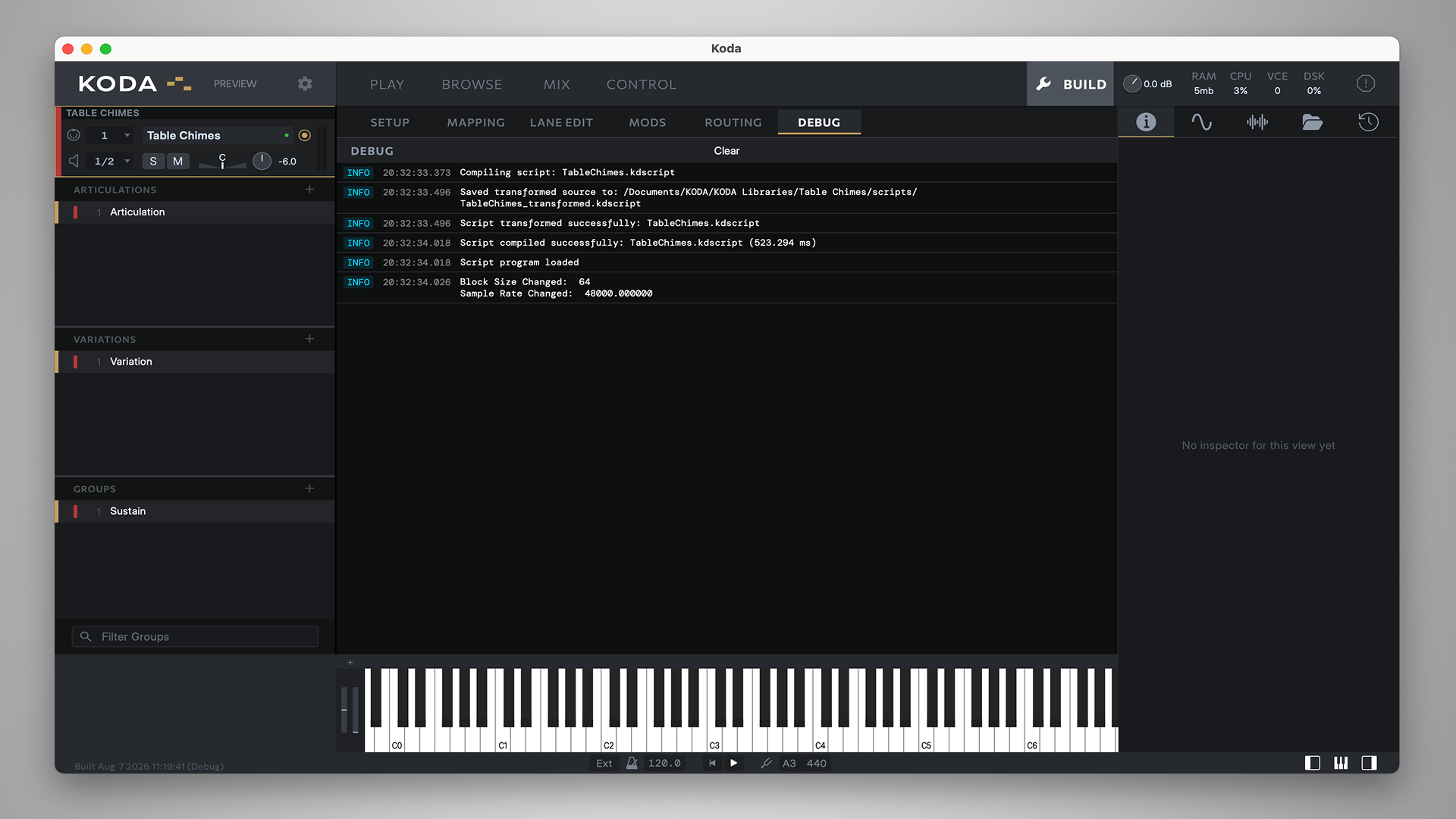
Selection & Copy
| Shortcut | Action |
|---|---|
| Click a row | Select message. |
| Shift+Click | Extend the selection up to that row. |
| ⌘ CmdCtrl+Click | Toggle the row in the selection (add / remove). |
| ⌘ CmdCtrl+C | Copy the selected log entries to the clipboard. |
Virtual Keyboard
The on-screen piano keyboard provides quick scroll and zoom gestures, distinct from other views.
| Gesture | Action |
|---|---|
| Scroll | Zoom the keyboard (key width). |
| Shift+Scroll | Scroll the keyboard left / right. |
Modulation
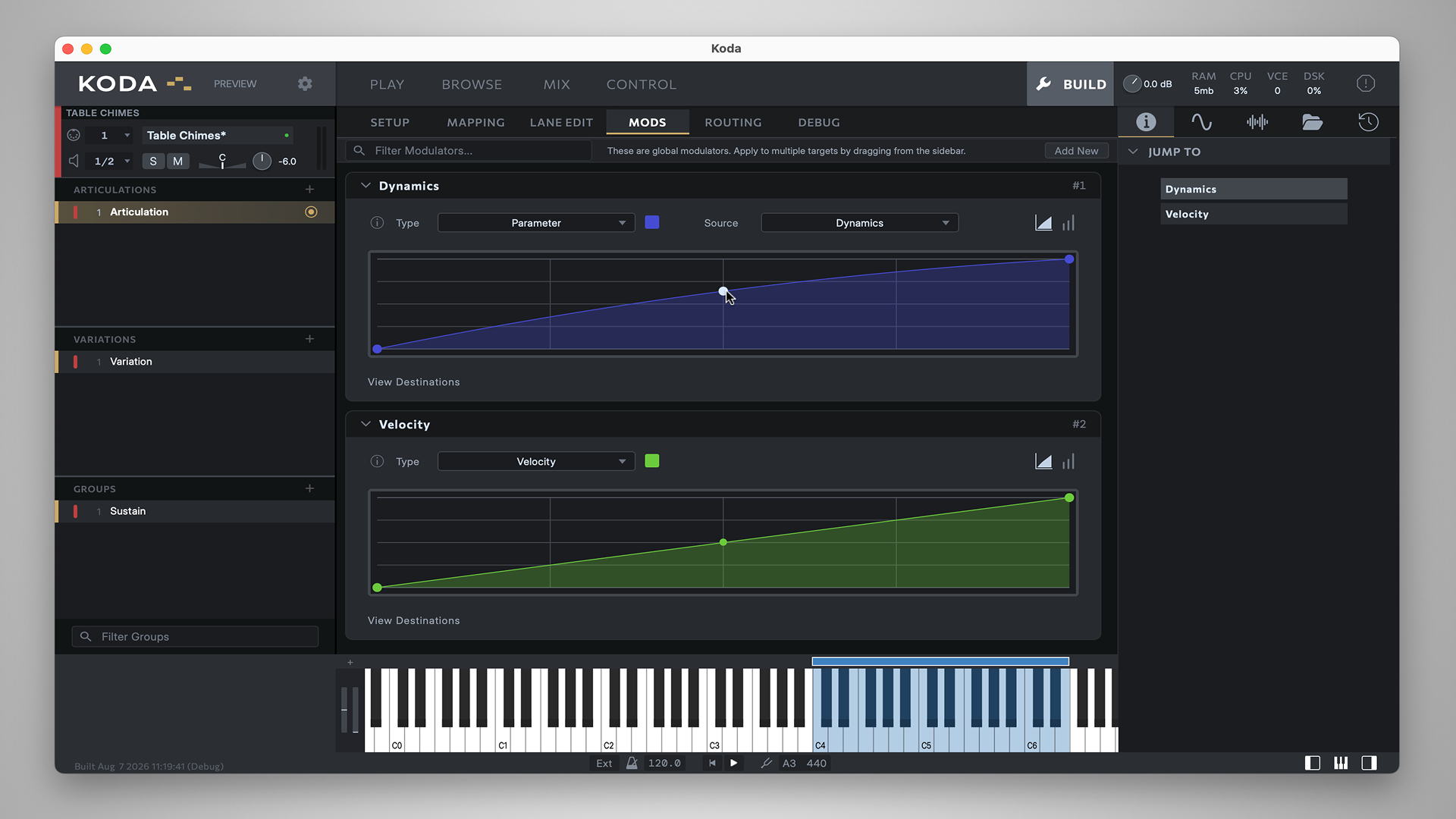
The Modulation view edits modulator graphs (envelopes, LFOs, tables) and routes them to targets.
| Shortcut | Action |
|---|---|
| Double-click the graph | Add a node. |
| Double-click a node | Remove node. |
| ⌘ CmdCtrl+Click a node / handle | Reset node to its default. |
Module & Section Headers
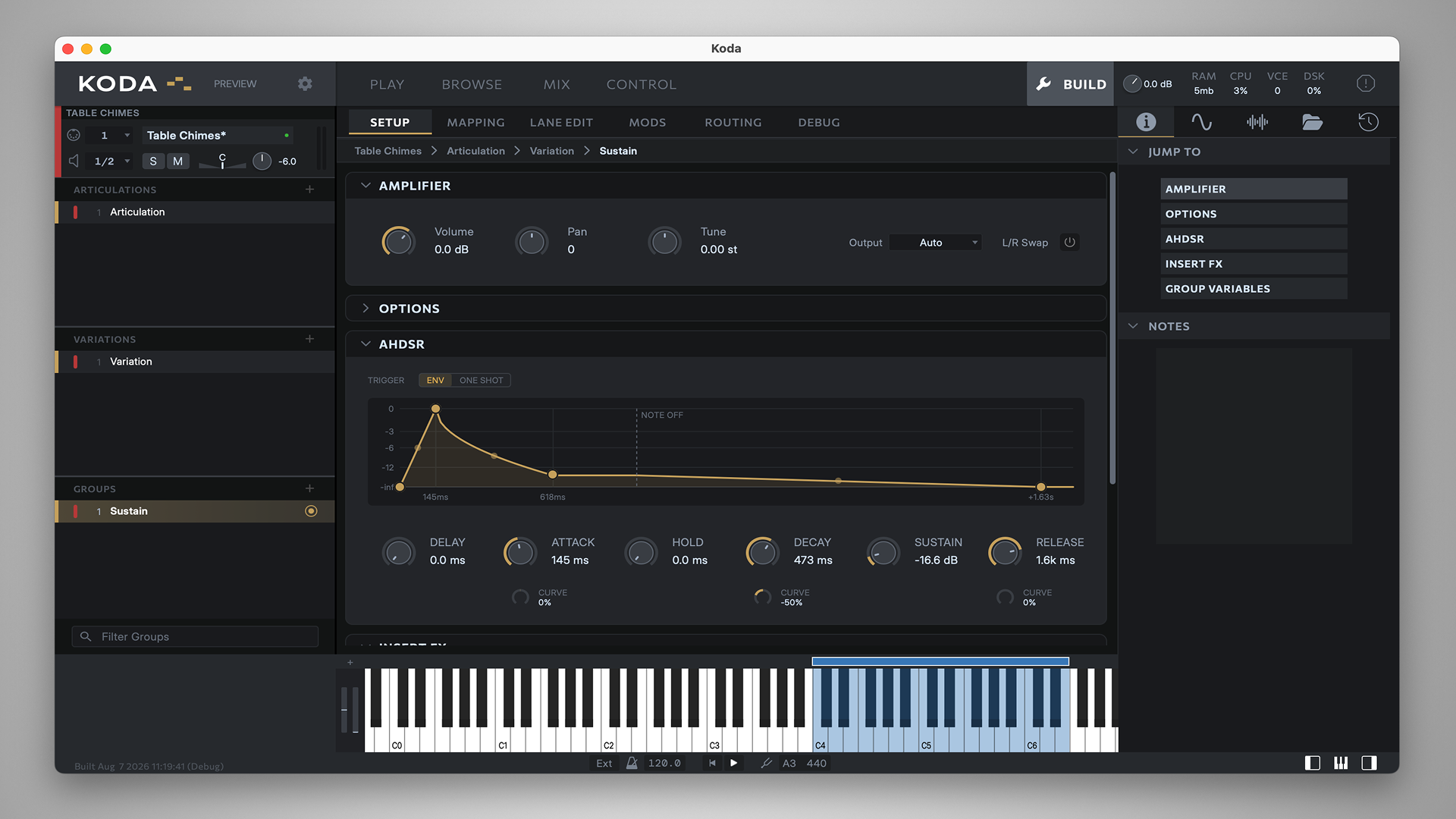
Expandable module rows - in Group Setup, the Mixer, Modulation, and the instrument rack - share the same modifier-driven bulk expand / collapse behavior on their expand button.
| Shortcut | Action |
|---|---|
| ⌥ OptAlt+Click the expand button | Collapse all modules. |
| ⌘ CmdCtrl+Click the expand button | Toggle all modules to match the clicked module's new state. |